 FolderAtlas
Finding duplicate files
Open the Duplicates view and click Find Duplicates. FolderAtlas compares files by their content, groups the identical ones, and ticks the copies to remove according to a rule you choose. Nothing is removed until you confirm.
Run a search
- Switch to Duplicates (⌘5). It works on the folder you are focused on, or the whole scan.
- Optionally set Ignore files smaller than to 1 MB, 100 MB or 1 GB. Ignoring small files makes the search much faster.
- Click Find Duplicates.
How files are matched
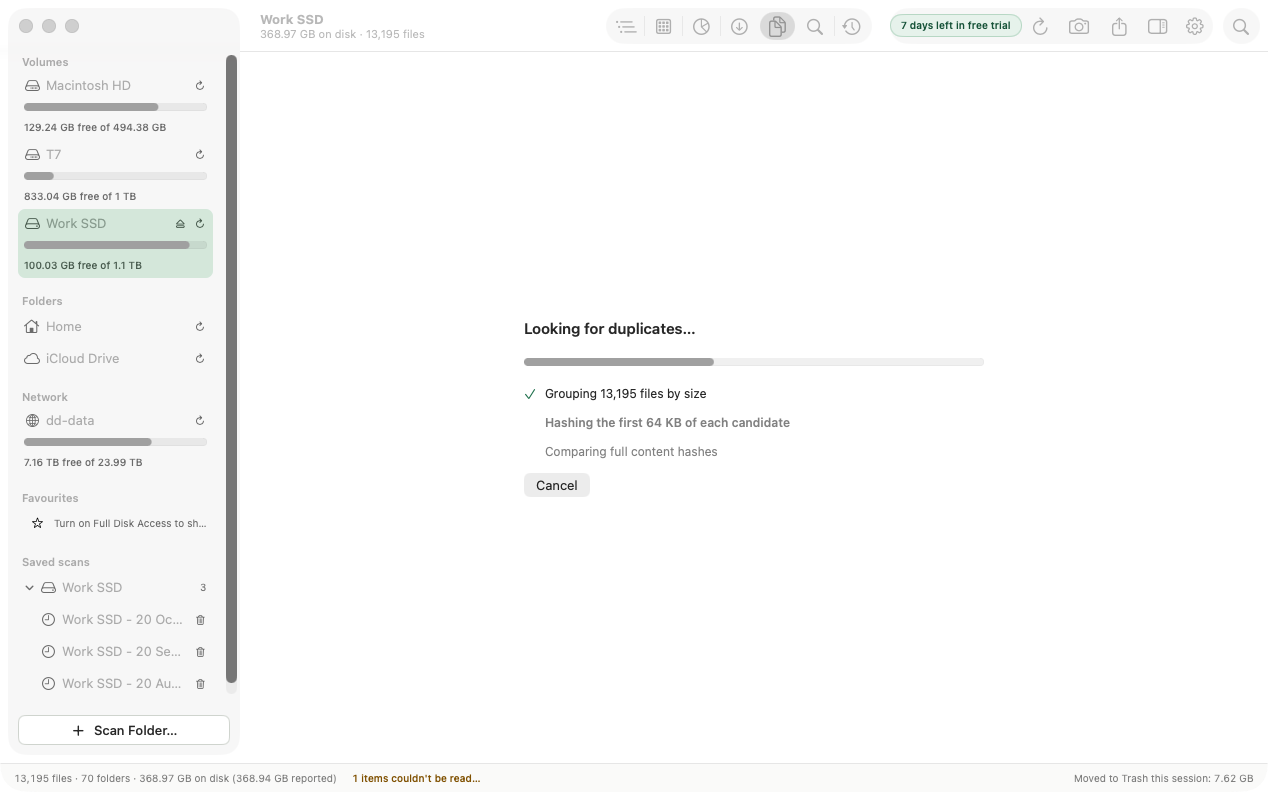
Files are matched by content, not by name. FolderAtlas works in three stages so that it reads as little as possible:
- It groups files by size. A file with a unique size cannot have a duplicate.
- It hashes the first 64 KB of each remaining candidate.
- It compares a full SHA-256 hash of the files that still match.
Only files whose entire contents are identical are reported. The comparison happens on your Mac and nothing is uploaded.
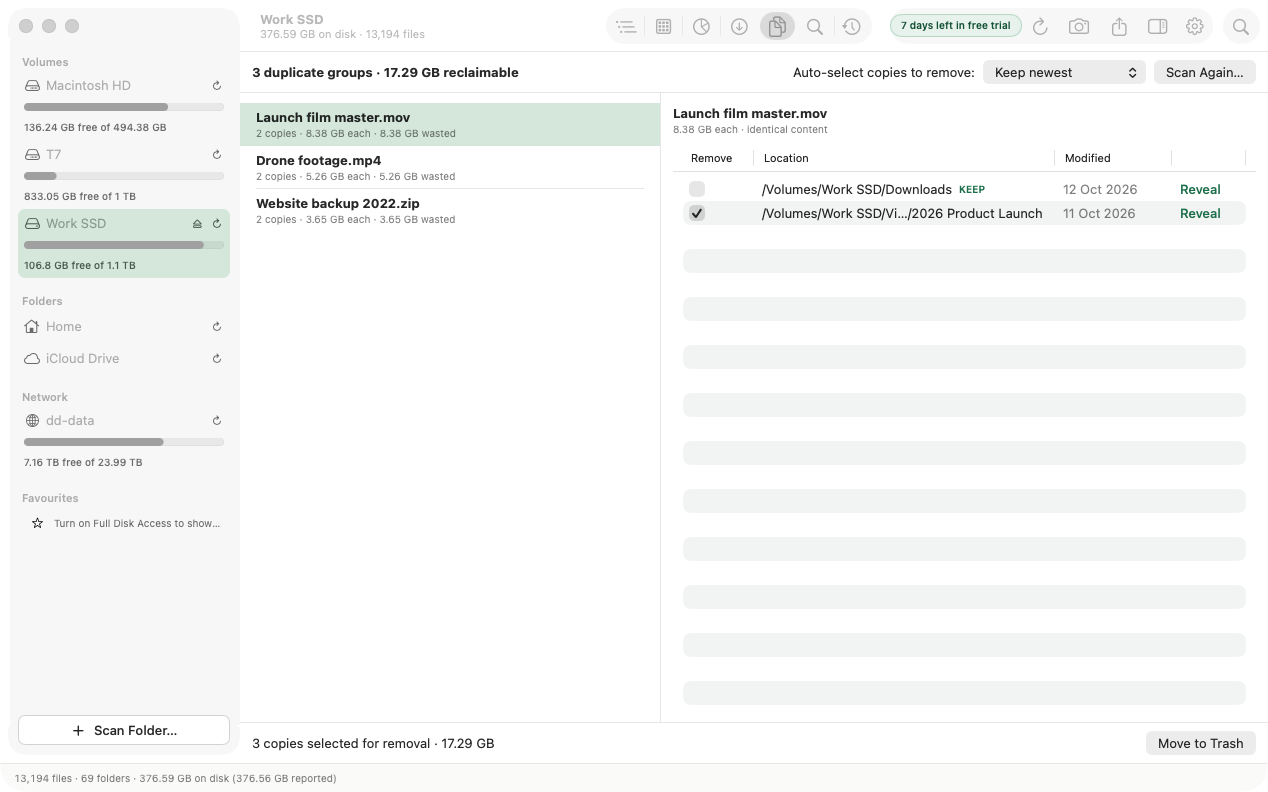
Choose what to keep
Each group shows the file name, how many copies there are, and the space wasted by the extras. Auto-select copies to remove ticks copies for you:
- Keep newest (the default)
- Keep oldest
- Keep shortest path
Select a group to see every copy with its location and modified date. The copy that will stay is marked KEEP. Tick or untick any copy to override the rule, and use Reveal to look at one in Finder. Changing the rule resets your manual ticks.
Remove the extras
The bar at the bottom shows how many copies are selected and how much space they use. Click Move to Trash and confirm.
- FolderAtlas always asks before removing duplicates, whatever your Trash setting.
- If every copy in a group is ticked, the group shows a warning and the confirmation says so, because no copy of that file would be kept.
- Removed copies go to the Trash, with an Undo button for a few seconds afterwards.
Good to know
- Empty files are never reported.
- Duplicates is not available when you are viewing a saved scan, because it needs to read the real files.
- Some duplicates are intentional, such as a backup folder. Check the locations before removing.
Last updated: 20 November 2026