 FolderAtlas
How FolderAtlas works
From first launch to free space in five steps. The whole process usually takes a few minutes, and nothing is removed unless you remove it.
Screenshots are design previews with sample data and may change before release.
1. Choose what to scan
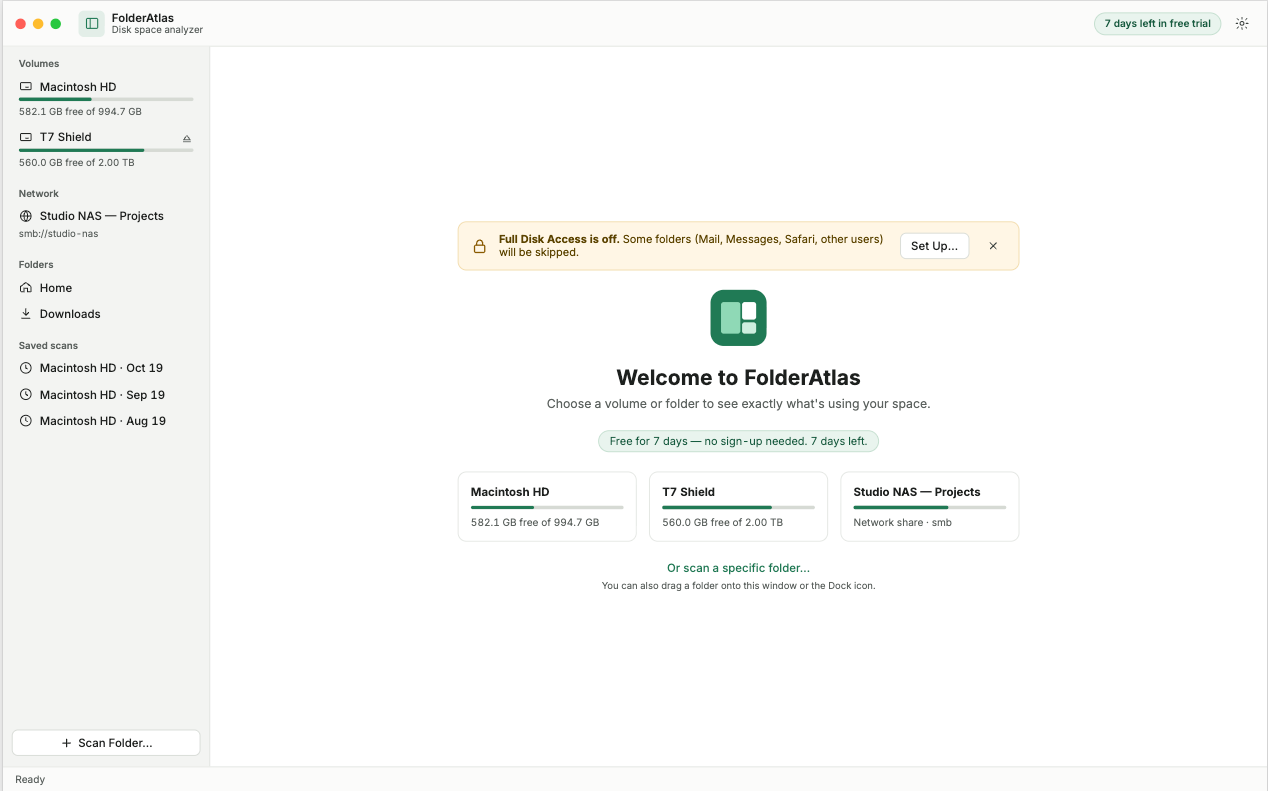
When FolderAtlas opens it lists your volumes with a capacity bar for each. Pick the startup disk for the full picture, an external drive, or choose a single folder if you already suspect where the problem is.
2. Allow access
FolderAtlas is a sandboxed Mac App Store app, so macOS asks you to confirm each location the first time you scan it. FolderAtlas remembers your choice, and you can withdraw it later in the app's settings.
Some folders, including Mail, Messages and Safari data, are protected by macOS and need Full Disk Access. This is optional. If you skip it, FolderAtlas scans everything else and tells you how many items it could not read.
3. Scan
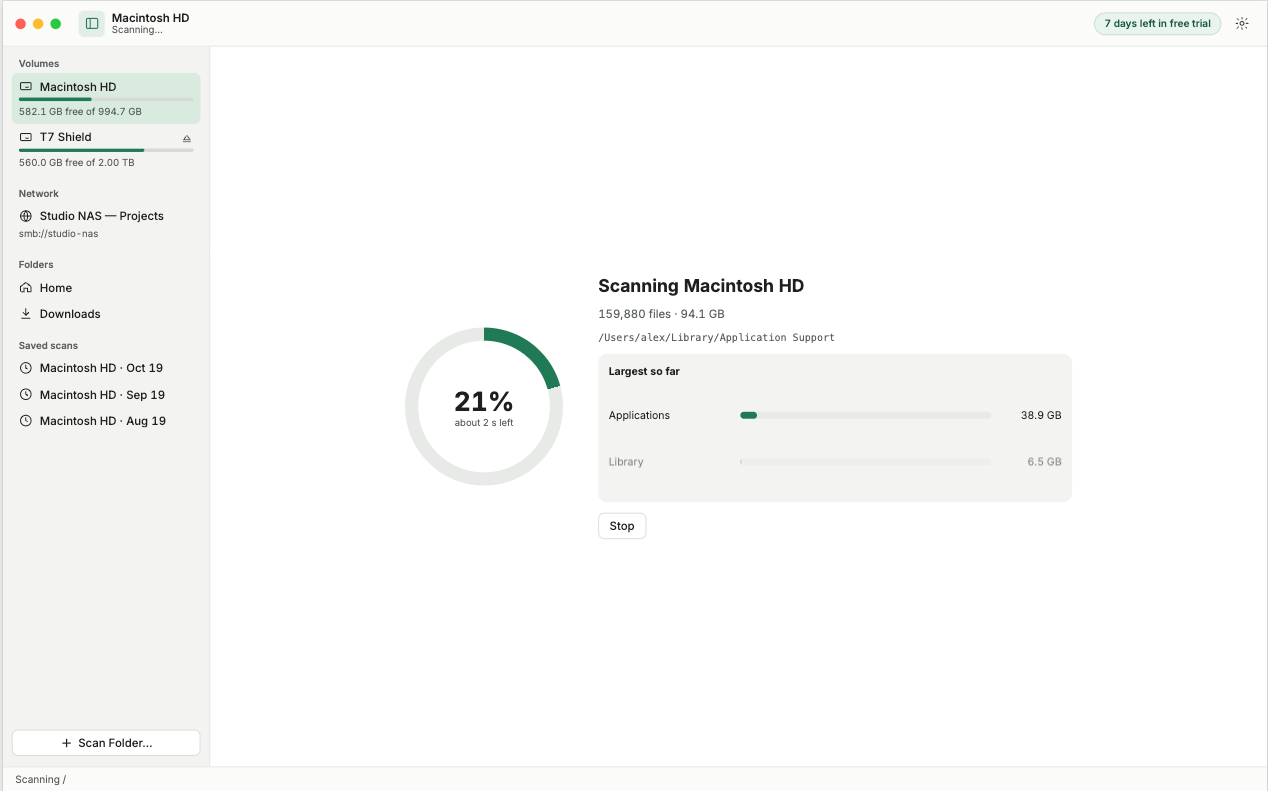
The scanner walks the location using several processor cores at once. You see a running count of files, the folder being read and the largest folders found so far. You can stop at any time.
4. Find what is using the space
Use whichever view suits the question:
- Treemap for the overall picture. The biggest rectangles are the biggest folders.
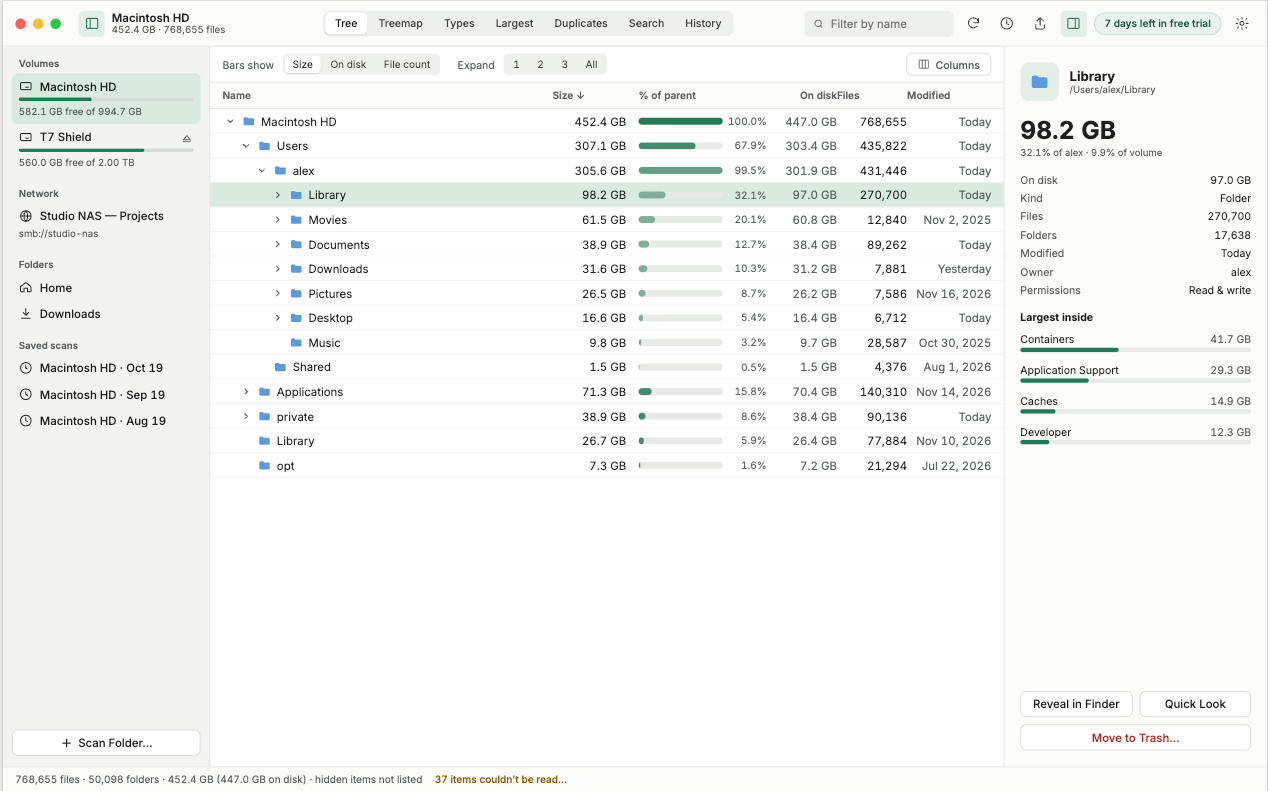
- Folder tree to drill down with exact numbers, largest first.
- Largest files to jump straight to the individual files worth dealing with.
- File types to see whether the space is going to video, apps, archives or something else.
5. Clear what you don't need
Select an item and choose Move to Trash, or reveal it in Finder first if you want to look more closely. The totals update immediately. Nothing is permanently deleted until you empty the Trash, so you can put anything back. If you are unsure about a folder, the guide to what is safe to delete on a Mac covers the common ones.
What FolderAtlas does not do
- It does not delete anything automatically or decide for you what is "junk".
- It does not upload file names, sizes or contents anywhere.
- It does not run in the background or change system settings.
See all features · Read the docs · Pricing
Last updated: 19 November 2026