 FolderAtlas
Using the folder tree
The folder tree lists every folder in the scan, largest first. To find what is using space, expand the top folder, then keep expanding the largest folder inside it.
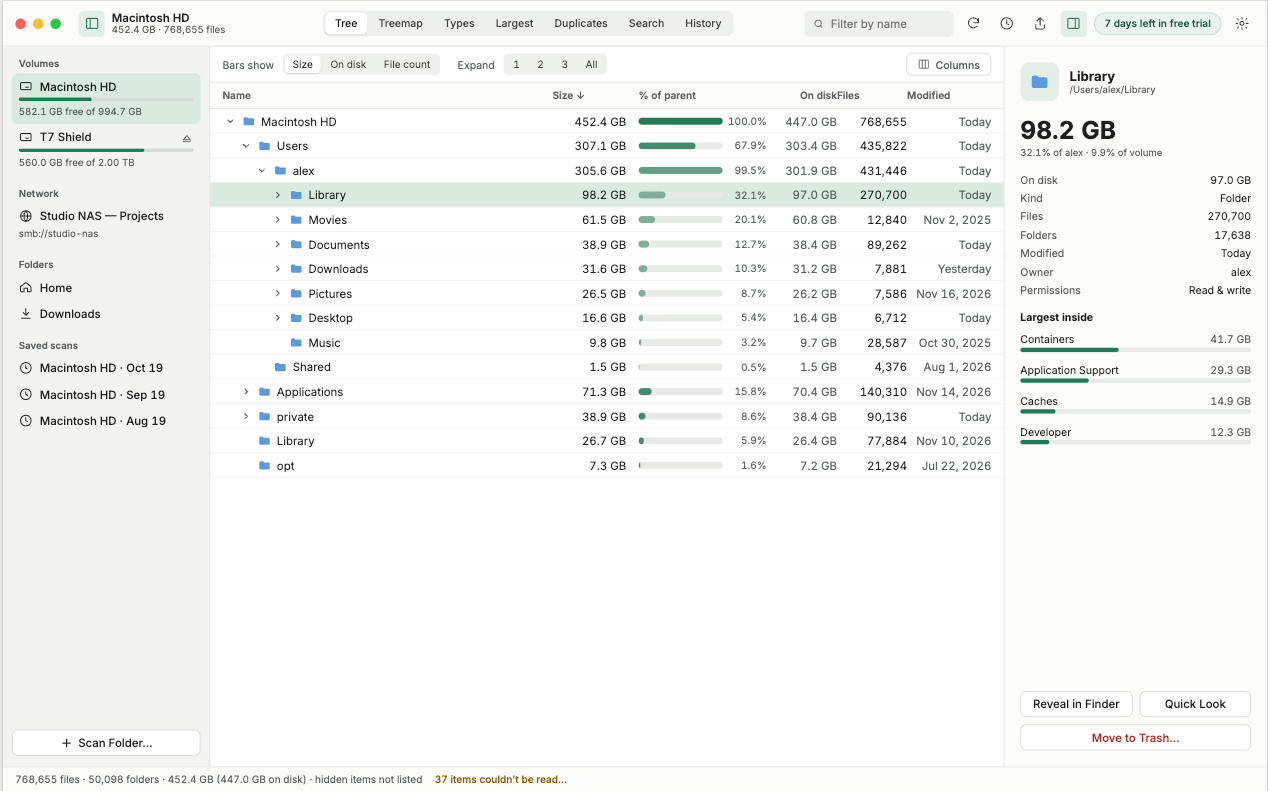
The columns
| Column | What it means |
|---|---|
| Name | The folder or file. Click the arrow to expand a folder. |
| Size | The total amount of data in the item, including everything inside it. |
| % of parent | How much of the enclosing folder this item accounts for, as a bar and a percentage. |
| On disk | The space the item actually occupies on the drive. See below. |
| Files | How many files the item contains, at any depth. |
| Modified | When the item was last changed. |
Follow the largest path
- Expand the top row (the drive or folder you scanned).
- The first row beneath it is its biggest child. Expand that.
- Repeat until you reach files, or a folder whose contents you recognise.
A folder with a long bar is responsible for most of its parent. A folder where no child stands out is large because it holds many medium-sized things, and the file types view is often more useful there.
Size and size on disk
Size is the amount of data. Size on disk is the space it takes on the drive. They differ because drives store data in fixed-size blocks, so small files round up, and because some files are compressed, sparse, or stored in iCloud and not downloaded, so they take less room than their size suggests. When you are trying to free space, size on disk is the number that matters.
Details for a selected item
Select a row to see more about it, including its share of the whole volume and its largest contents. From there you can reveal it in Finder or move it to the Trash. See Cleaning up.
Last updated: 19 November 2026