 FolderAtlas
Getting started with FolderAtlas
Install FolderAtlas from the Mac App Store, open it, choose your startup disk and confirm access. When the scan finishes, the folder tree shows every folder from largest to smallest.
Install
- Open the Mac App Store and search for FolderAtlas, or use the download link on folderatlas.com.
- Click Get. FolderAtlas needs macOS 14 Sonoma or later.
- Open it from Launchpad or your Applications folder.
Your 7-day free trial starts the first time the app opens. There is nothing to sign up for. See Free trial and subscription.
Run your first scan
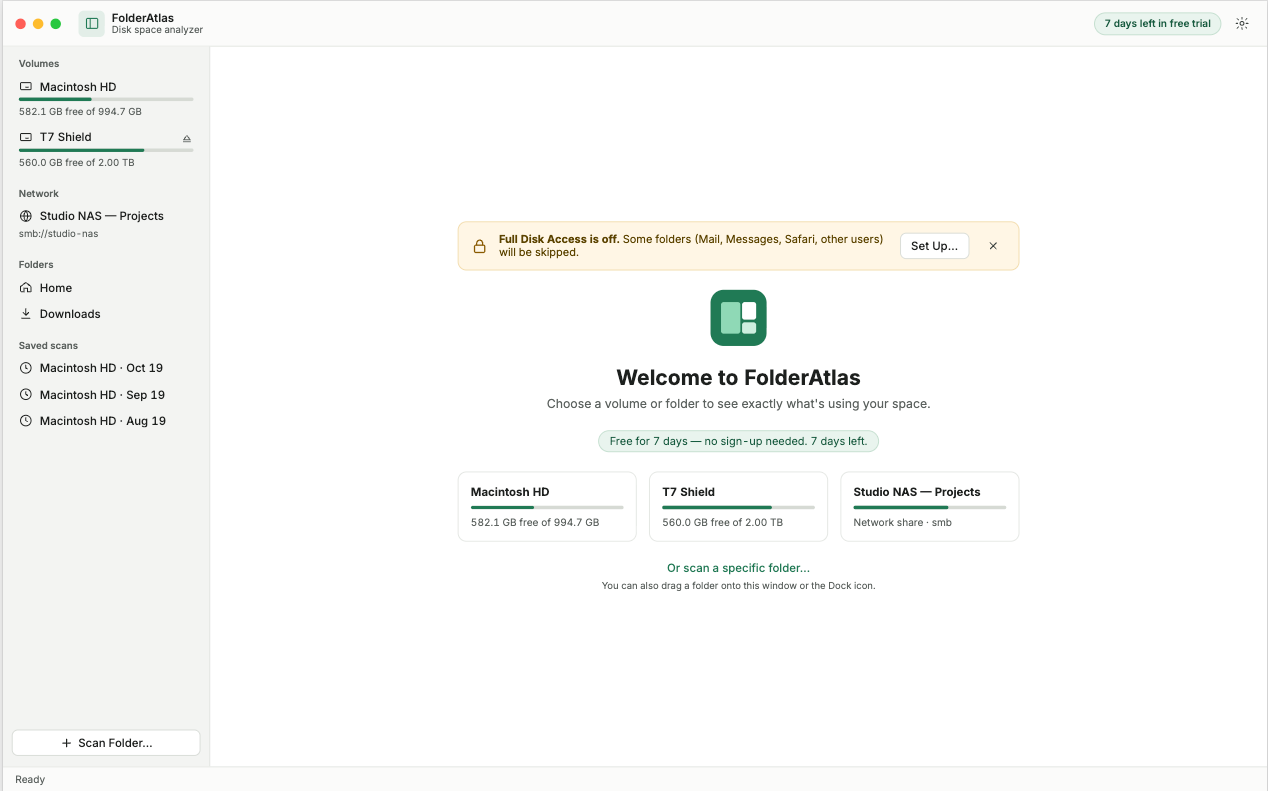
- On the welcome screen, click your startup disk (usually Macintosh HD). To scan one folder instead, choose the scan-a-folder option.
- macOS asks you to confirm the location. Click to allow it. FolderAtlas remembers this.
- Wait for the scan. You will see the file count rise and the largest folders found so far. Click Stop if you want to cancel.
Read the result
The view switcher at the top of the window changes how the same scan is shown:
- Tree lists folders by size. Start here.
- Treemap shows the proportions as rectangles.
- Types totals storage by kind of file.
- Largest lists the biggest individual files.
The status bar at the bottom shows the total number of files and folders, the total size, and how many items could not be read.
If some items could not be read
macOS protects certain folders. To include them, turn on Full Disk Access and scan again.
Next
When you have found something to remove, see Cleaning up.
Last updated: 19 November 2026