 FolderAtlas
Menu bar, notifications and Finder
FolderAtlas adds an icon to the menu bar that shows free space on every drive, warns you when a drive is nearly full, and adds Analyze with FolderAtlas to Finder's right-click menu for folders.
The menu bar icon
- Click it to see recent alerts, the free space on each volume, and buttons to scan your startup disk or open FolderAtlas.
- Right-click it for Open FolderAtlas, Settings… and Quit FolderAtlas.
- To show the startup disk's free space next to the icon, turn on Show free space next to the menu bar icon in Settings › Notifications.
Running in the background
Closing the FolderAtlas window does not quit the app. It stays in the menu bar so that low-space alerts and scheduled scans keep working. To quit completely, press ⌘Q or right-click the menu bar icon and choose Quit FolderAtlas.
Notifications
| Notification | When |
|---|---|
| Low disk space | A volume's free space drops below the threshold you set: 20, 50 or 100 GB. The default is 50 GB. You are told once, until the space rises back above the threshold. |
| Scheduled scan finished | A scheduled scan completes, or finds that a location grew by more than your limit. |
| Scheduled scan skipped or needs access | A drive was not connected, or FolderAtlas has not been given access to the location. |
| Free trial ends tomorrow | The day before the free trial ends. |
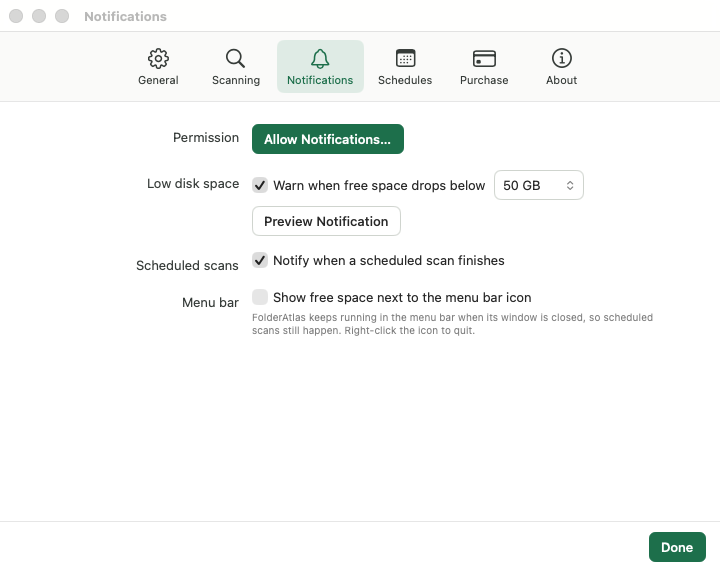
Change these in Settings › Notifications. If notifications are turned off for FolderAtlas in System Settings, alerts still appear on the menu bar icon and in the window.
From Finder and the Dock
- Finder: right-click a folder and choose Analyze with FolderAtlas under Services or Quick Actions.
- Dock: right-click the FolderAtlas icon to scan a volume or choose a folder.
- Drag and drop: drag a folder onto the FolderAtlas window to scan it.
Last updated: 20 November 2026