 FolderAtlas
 features
FolderAtlas scans a drive once and gives you four views of the result. Each view answers a different question, and they all stay in sync: remove something in one and the totals change everywhere.
Screenshots are design previews with sample data. Details may change before release, and tabs shown for features still in development are listed at the end of this page.
Folder tree
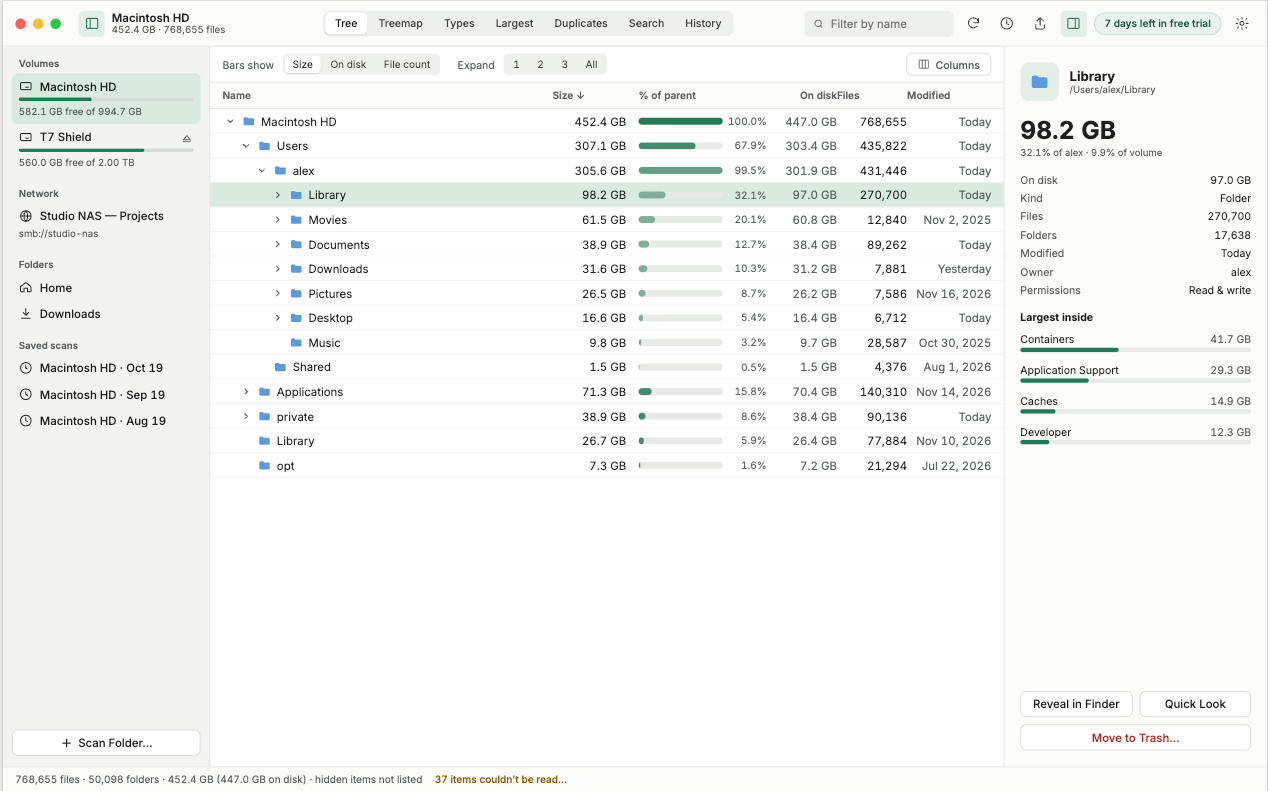
Answers: which folder is the biggest, and what is inside it?
Every folder is listed with its size and sorted largest first. A bar shows each folder's share of its parent, so you can follow the weight down the tree: open the biggest folder, then the biggest inside it, until you reach the files responsible.
- Size and size on disk, side by side
- Share of parent as a bar and a percentage
- File count and last modified date
- Details for the selected folder, including its largest contents
Treemap
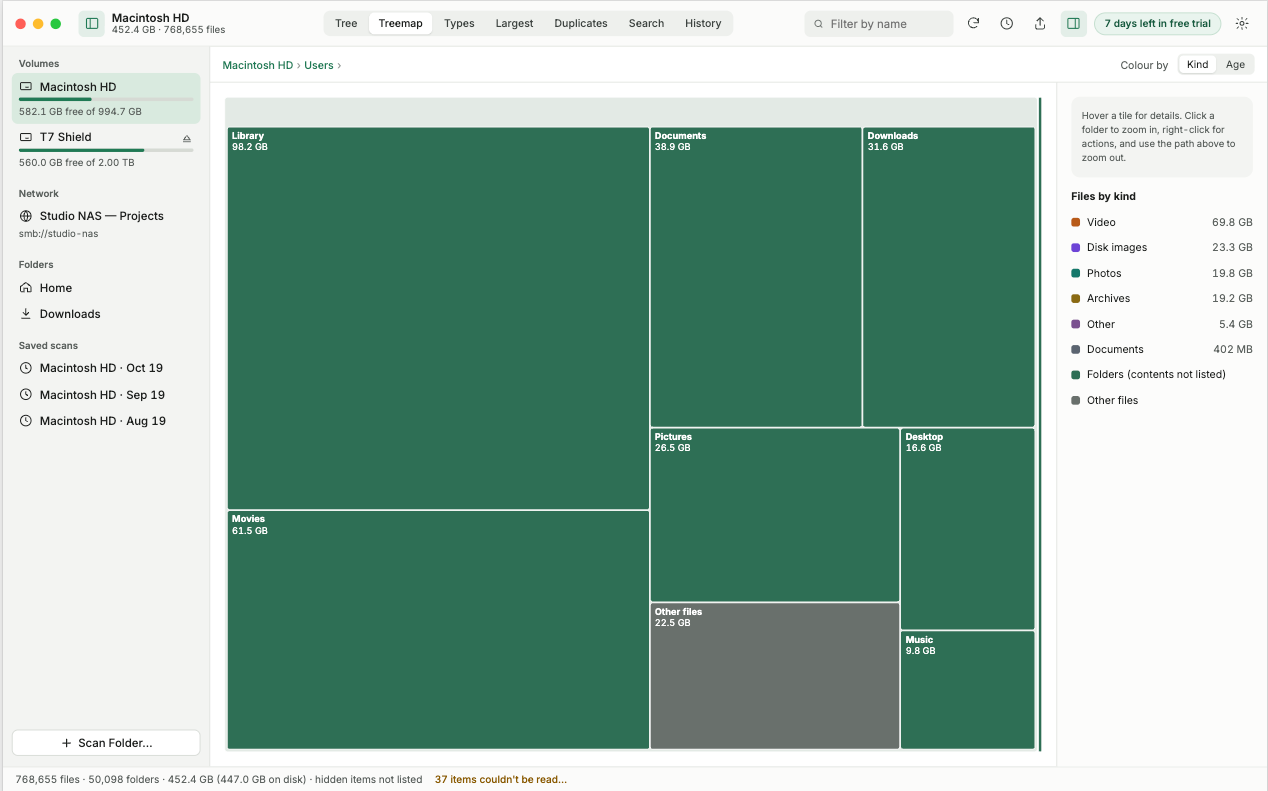
Answers: where did all the space go, at a glance?
The treemap draws the scanned location as one rectangle and divides it among its folders in proportion to their size. Large things are large on screen. Click a folder to zoom into it, and use the path bar to step back out.
- Every tile is labelled with its name and size
- Click to zoom, path bar to zoom out
- Colours identify file kinds, with a labelled key
File types
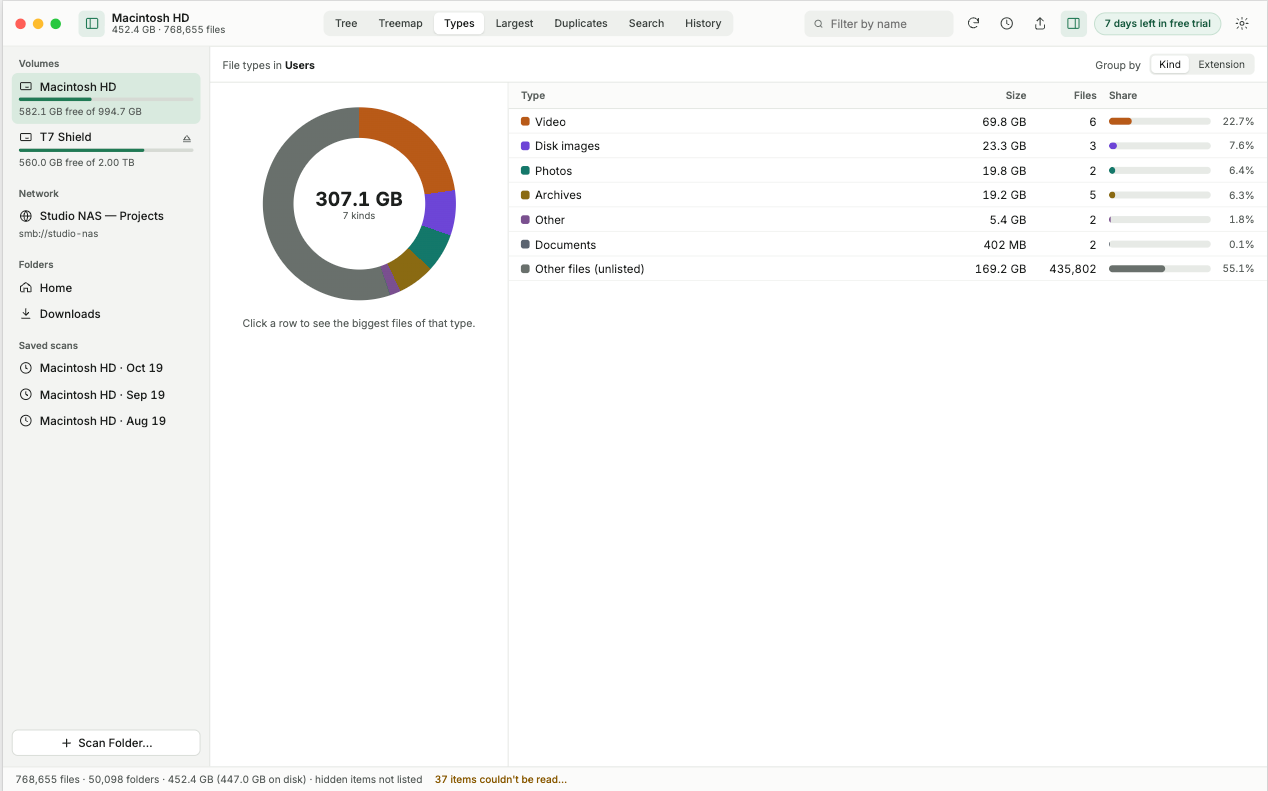
Answers: what kind of thing is filling the disk?
FolderAtlas groups files by type and totals them, so you can see whether the space is going to video, disk images, apps, photos or archives. A chart shows the proportions and a table gives the size and file count for each type.
Largest files
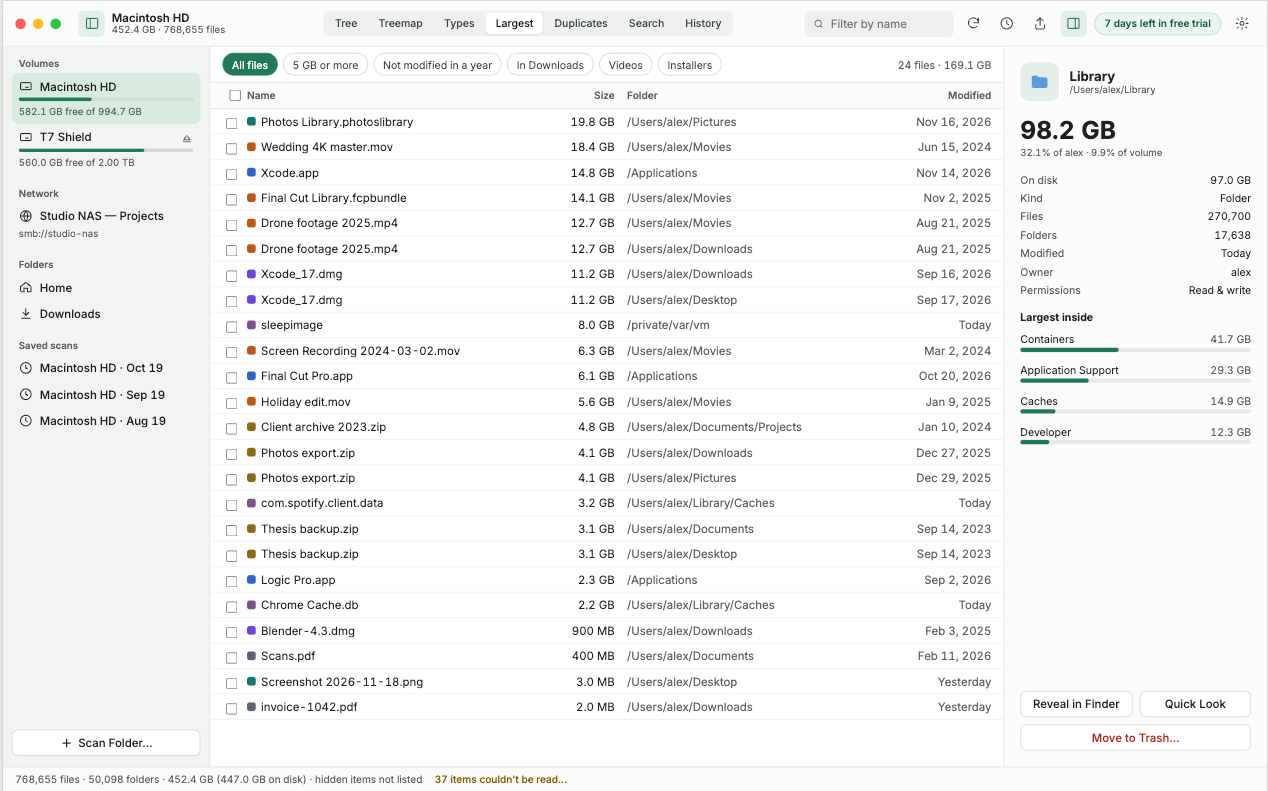
Answers: which individual files are worth my attention?
The 100 biggest files in the scan in a single list, with the folder each one lives in and when it was last modified. This is often the fastest route to free space, because a few forgotten installers, exports and recordings can account for tens of gigabytes.
Safe clean-up
From any view you can reveal an item in Finder, open it, copy its path or move it to the Trash. FolderAtlas never deletes anything by itself and never deletes permanently: removed items go to the Trash, and the scan totals update immediately so you can see what you have gained. How clean-up works.
Scanner
- Any volume or folder. Scan the startup disk, an external drive or a single folder.
- Multi-threaded. The scan uses several processor cores and shows live progress with a Stop button.
- Stays where you point it. A scan does not wander onto other volumes and does not follow symbolic links, so nothing is counted twice.
- Tells you what it missed. If macOS blocks some folders, the status bar shows how many items could not be read. Granting Full Disk Access includes them.
Privacy and security
- Runs in the macOS App Sandbox and reads only the locations you choose.
- No analytics, no advertising, no account. Nothing about your files leaves your Mac.
- Distributed only through the Mac App Store, so it is reviewed and signed by Apple.
In development
These are designed and being built, but are not part of the first release:
- Duplicate file finder
- File search by name, size, age and type
- Saved scans, with history showing how a folder has grown
- Export to CSV and PDF
- Versions for Windows and other platforms
Requirements and price
macOS 14 Sonoma or later. Free download from the Mac App Store with a 7-day free trial, then US$2.99 a year. Pricing details.
Last updated: 19 November 2026