 FolderAtlas
External and network drives
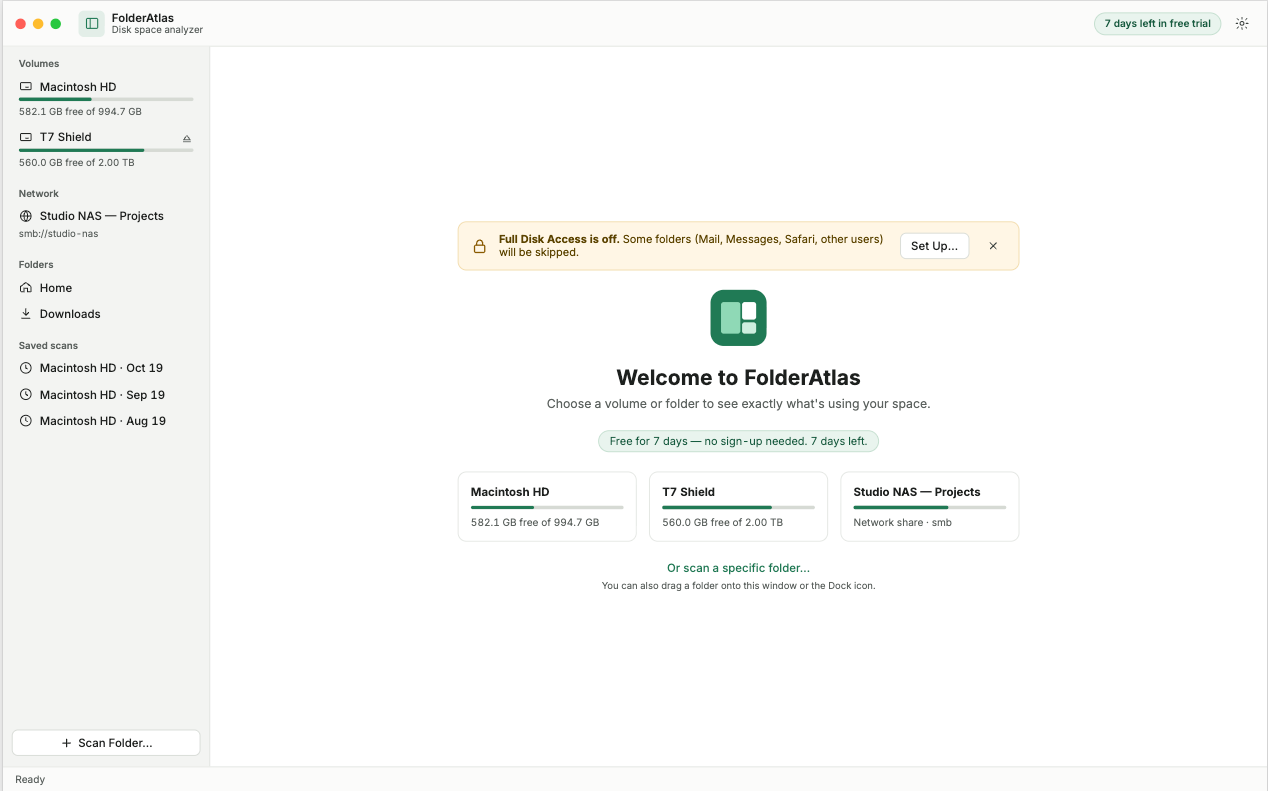
Connect the drive or mount the share in Finder, and it appears in the FolderAtlas sidebar and on the welcome screen. Click it, grant access once, and it is scanned like any other location.
External drives
USB drives, SSDs and memory cards appear under Volumes with a capacity bar and an eject button. The list updates as drives are connected and removed.
Network shares
SMB and NFS shares that are mounted in Finder appear under Network. When the server reports its capacity, FolderAtlas shows free space as it does for a local drive. When it does not, the share's address is shown instead and the scan shows a running file count and no percentage.
Keeping it gentle on a NAS
Scanning a share means asking the server about every file. Settings › Scanning › Network shares controls how many folders are read at once:
| Setting | Parallel reads | Use when |
|---|---|---|
| Gentle | 2 | The server is busy or slow, or other people are using it. |
| Balanced (default) | 4 | Most home and office NAS devices. |
| Fast | 16 | A fast server on a fast network that you have to yourself. |
Good to know
- A scan stays on the drive you chose. A second drive or share mounted inside it is not followed.
- Items removed from a network share may be deleted immediately by the server instead of going to a Trash. macOS warns you when that is the case.
- FolderAtlas remembers your access to a drive while it is disconnected.
- A scheduled scan of a drive that is not connected is skipped, and you are notified.
- To look at a drive that is not connected, open a saved scan of it.
Last updated: 20 November 2026